Fearless inventory - Early process
Build A System For An Existing Brand, And Then Put It To The Test
HOMEPAGE
Rough Prototype of Wireframes 1
User Tested Wireframes
User Test Observations
When I was doing my first round of user testing, I was lucky to find three people with retail and inventory experience, which gave me really helpful insight. Almost everyone tried to scroll on the home screen immediately, suggesting they expected more flexibility than what was visible. The inventory start screen caused a bit of hesitation at first, but since the first test I have added an exit confirmation pop-up for clarity. I also removed the calendar feature after testing to keep the experience more focused. Overall, once users understood what to do, saving and submitting counts felt straightforward.
The biggest pattern I noticed was that users immediately started counting the physical item after tapping “Start Inventory,” instead of searching for the item in the app first. This happened to both the people who have had experience in retail and people who did not. They are used to counting first and recording second, so that instinct carried over. Right now, the app starts with a search-first workflow, which is creating the friction. It’s also possible that some of the confusion was on my end, as I may not have clearly explained that the rubber bands were the pretend item they were supposed to count rather than what was already listed in the app.
FEARLESS INVENTORY
BRANDING
Design Audit Review 2/26/26
Inventory Page - Pause and End Buttons. Pause allows workers to take breaks and the end button acts as a save and quit.
Workers also are able to see how long they have been doing inventory, with a [number] of [number] items scanned. Potentially adding a progress bar later?
Item screen (Coffee Bag). Plus and minus buttons to do the count. Also are able to tap the item image to count it for an easy way of not looking down at a screen 24/7. Submit the final count. Below it is a log of what was counted the last inventory check.
Scan barcode screen. Camera on phone is used to scan. Place barcode within frame. If there is no barcode, worker will be asked to manually type in the SKU.
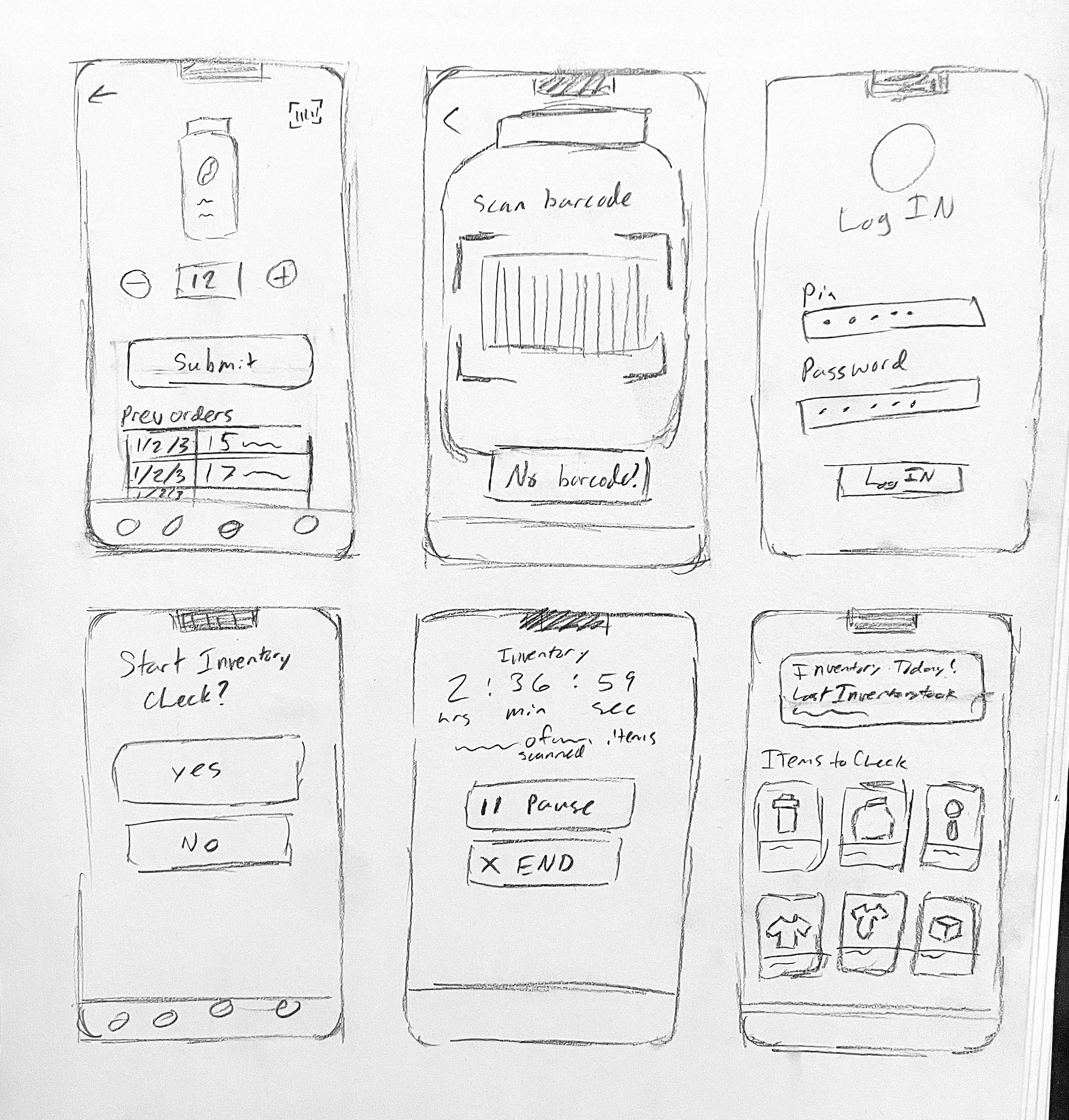
Log In with Pin
Dashboard with Inventory Check notification. There are also items (with photos) listed to specifically count today.
Start Inventory check screen. If person hits accidentally, there is also a no option to go back to the dashboard.
Digitized Sketches
Added Calendar screen so workers can easily see when the next inventory day is, when the last one was, and when the next one will be. Especially important if inventory is random and not on set scheduled days.

Pin
App Name
Log In
Password
Forgot Password?

Coffee Cups
Coffee Bags
Pastry Boxes

Coffee Cups
Coffee Bags
Pastry Boxes
Items to Focus On
Filter
Hoodies
Striezel
Original Mozart Cake
Inventory Check Today
Last inventory on 1/20/26 took 2 hrs, 39 min, 23 sec
Start Inventory
Dashboard
Coffee Cups
Coffee Bags
Pastry Boxes
Coffee Cups
Coffee Bags
Pastry Boxes
Items to Focus On
Filter
Hoodies
Striezel
Original Mozart Cake
Inventory Check Today
Last inventory on 1/20/26 took 2 hrs, 39 min, 23 sec
Confirm Inventory Start?
Dashboard
Yes
Cancel
Today
2/15/26
2/06/26
1/29/26
Count In Progress
27 Coffee Bags In Warehouse
35 Coffee Bags In Warehouse
18 Coffee Bags In Warehouse

14

+

-
Save & Continue
Submit Final Count

Coffee Bag

Place Barcode Inside Rectangle
Item Scan
No Barcode?
Inventory Timer
hrs
min
sec
2 : 36 :59
Pause Inventory
123 Items out of 200 Items Scanned
Submit Inventory Count As Is
Calendar
Month
Inventory
Today
Inventory
Inventory
Inventory
Inventory
Inventory
Inventory
Inventory
Inventory
Next Inventory Is
Today
EARLY PROCESS